
Getting Started with the Harmony C1 Player
The C1 Harmony player comes pre-loaded with your music to best set the perfect mood in your business.
Not your player? Follow these links if you need help getting started with the Harmony MAVP-B2 player?
Included with Your Mood Harmony Player:
- Harmony C1 Media Player
- Power Adapter
- Ethernet Cable (4 feet)
- 3.5mm Aux to RCA Audio Cable (3 feet)
Initial Setup
Connecting Harmony to a sound system
NOTE: Your device may not function as intended if different adapters and cables are used. Please only use the adapters and cables that are included with Mood Harmony.
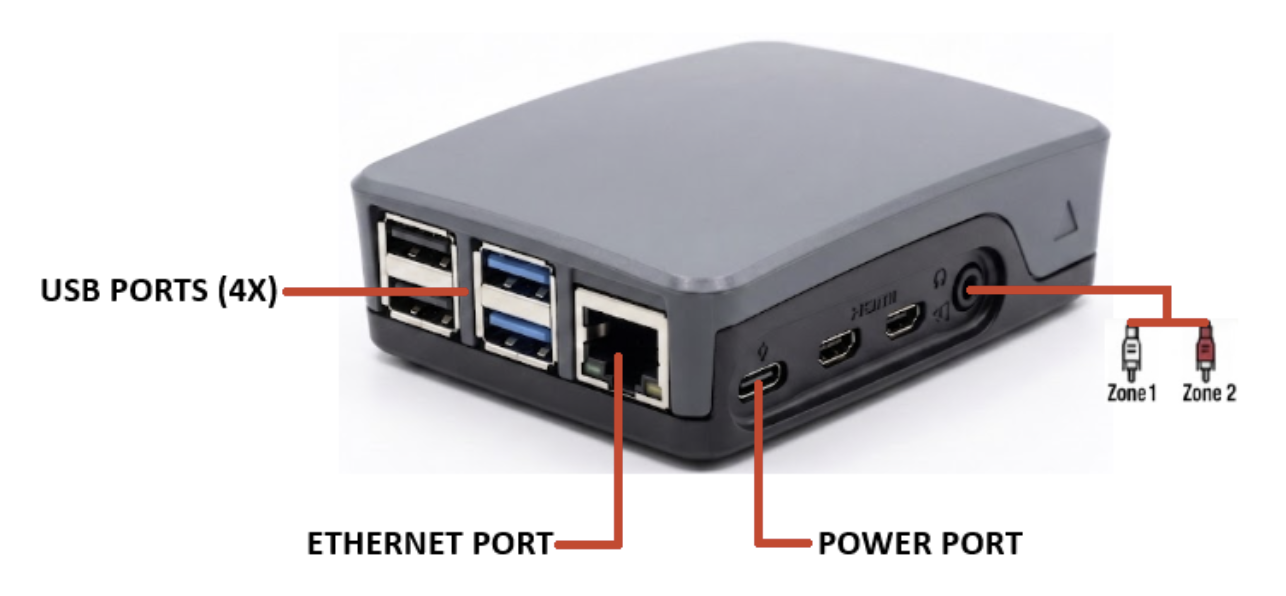
- Please refer to the Regulatory and Safety Information sheet included with your Harmony before proceeding.
- Adjust the volume of your display or speaker system down completely (off). Then, if necessary, power off and remove your existing media player.
- Unpack your Harmony C1 device and place it in an area that allows for adequate ventilation space.
- Connect the cables in this order: Note:The Harmony player does not support Bluetooth playback at this time.
- Step A: Plug the power adapter into the back of Harmony and plug it in to an ‘always on’ outlet – Harmony is energy efficient and optimized to run 24/7, so do not use an outlet that’s controlled by a switch or electrical timer. Be sure to only use the power adapter provided with Harmony.
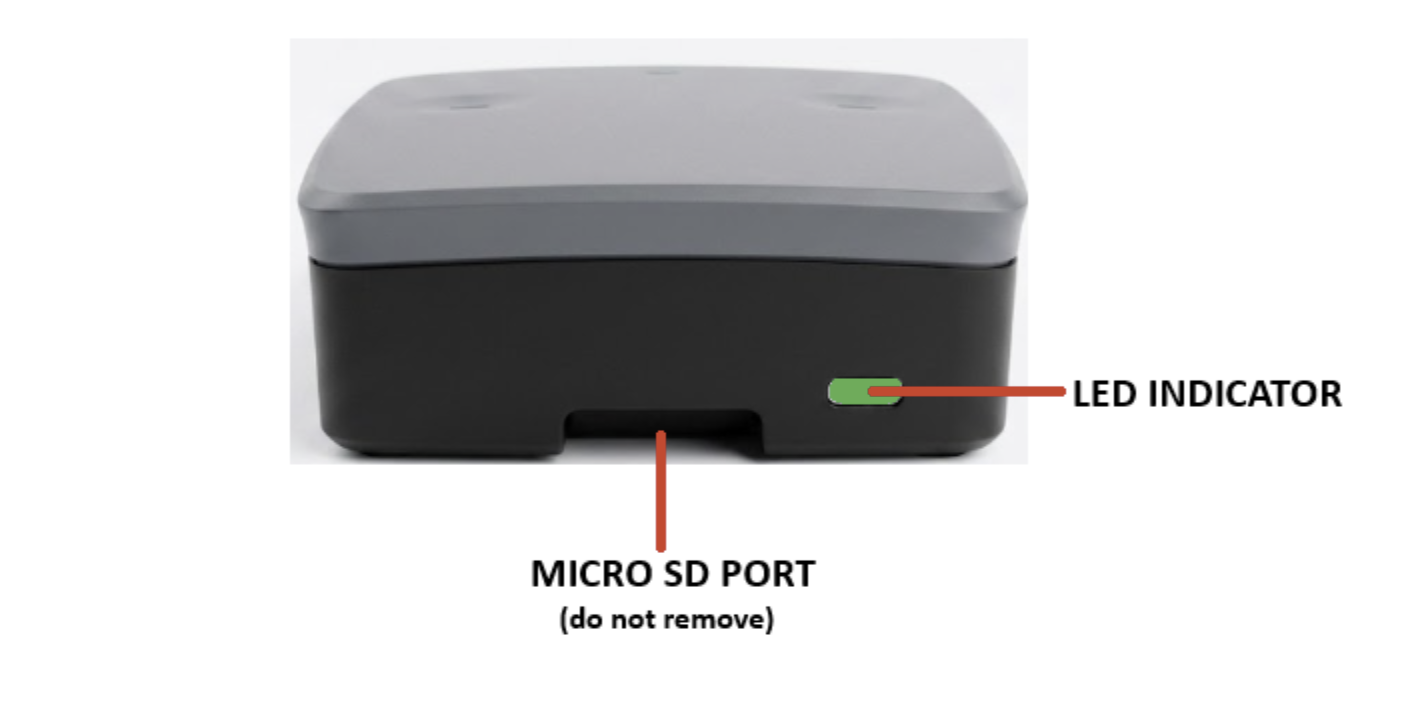
- Step B: Mood recommends you use the Ethernet cable included to connect Harmony to your network: plug one end of the Ethernet cable into the network port of the Harmony player and the other end into your network router/switch. Once Harmony is connected to the internet, the Network light will remain solid green. If your LED Indicator is anything but “solid on”, please refer to the Network Setup section below for additional network setup instructions.
- Step C: To connect your Harmony C1 to your sound system plug the 3.5mm Aux cable into the Harmony A/V jack, then the red/white RCA connectors to the corresponding audio zone(s) for your speaker system. There is no need to use the yellow RCA connector. The white cable is for Zone 1 audio and the red cable is for Zone 2.
- Step D: Turn on your speaker system and increase the master volume in small increments until you reach your desired listening level. Please note that you may need to adjust your speaker volume to match the level you are accustomed to. Due to normal differences between any previous music player and your new Harmony player you may need to try different volume settings. The volume on Harmony C1 player is set to 100% from the factory, so adjust your speaker system volumes carefully.
- After 1-3 minutes, your music content should start to play automatically. If it doesn’t, check your sound system / display to make sure it’s turned on and/or the volume is up at a hearable level.
______________________________________________________________________
Network Setup
Wired Ethernet Setup (Recommended)
If available, the easiest and most reliable way is to connect Harmony to your Internet router using the Ethernet cable included in the box.
- Connect the provided Ethernet cable into the Ethernet port on the back of Harmony C1 player and to your internet router.
- Once Harmony C1 player is successfully connected to the internet, the LED Indicator will remain solid Green indicating no action required. (For advanced setups that require a Static IP address or Proxy, see the WiFi and Advanced Wired Setup below), see the LED Control Guide for troubleshooting.
WiFi and Advanced Wired Setup
You will need to download the Mood Harmony app on the Google Play Store or Apple App Store.
After installing the Mood Harmony app on your mobile device, follow the instructions in the app to get connected. Watch our How to Access Network Settings Video for more information.
Once Harmony is connected to the internet, the LED Indicator will remain “solid green”.
If your LED Indicator is blinking a pattern, see the LED Control Guide for troubleshooting.
Controlling Harmony Music
If you’re an active Harmony Music subscriber, you should have received an email with your account information. Log on to Harmony Music to start customizing your music experience.
Didn’t receive an email from us? Contact us at [email protected] to request your login credentials.
Getting Started with the Harmony Music Control Site
Use our Harmony Music Video Tutorials for how to use our Harmony control site.
Harmony Music was designed with mobile in mind. The site looks and works great on all modern computers (desktop/laptop), mobile phones, and tablets!
Library: All music content you’ve added or created will be kept here. Clicking the + icon in the top right corner of the screen allows you to: Add existing Mood Core Programs or Create a Mix.
Messaging: Here, you are able to upload and schedule overhead messaging in your business to play at specified times.
Now Playing/Sites: Use this to see your players and what song each player is currently playing. You also have the ability to skip and block unwanted songs, as well as mute and adjust the volume. Heard a song recently and want to know the artist and track name? Clicking on the Recent button will display a list of recently played songs. You can also tune your player to play specific Playlists you’ve created from the Playlists tab.
Playlists: The Playlists tab allows you create a Playlist schedule using any music (Programs/Mixes/Stations) you’ve added to your Music Library. You can also schedule your Music to play at times you specify to custom tailor your music experience.
NOTE: Your Harmony media player will come preloaded with music so once it’s connected to your sound system, you’ll instantly have access to your music!
LED Status Guide
Your Harmony C1 media player features a blue LED indicator to provide real-time status updates.
| LED Indicator | Status | Action Required |
| Solid Green | Normal Operation | No action required |
| Solid Off | Device Powered Off | Check power connection |
| Solid Red, Blink Green (2s On, 0.5s Off) | Hotspot Mode | Connect to device’s hotspot to complete network setup |
| Solid Red, Fast Blink (0.5s On, 0.5s Off) | Offline | Check network cables or WiFi connection |
| Solid Red, Slow Blink (0.5s On, 2s Off) | Limited Connectivity | Verify firewall settings and ensure required ports are open |
| Solid Red, Double Blink – Pause | Connected but Content Stopped | Ensure player is in playback mode, check schedule settings |
| Solid Red, Triple Blink – Pause | Audio Muted / Unplugged | Check volume settings and audio connections |